.svg)

_converted.webp)
You can launch a ChatGPT Ads campaign without conversion tracking, but then your reports will show only impressions and clicks. The Conversions objective isn't available at all without it, and conversions are only counted from the moment an event is linked to a campaign.
That's why it's best to set up tracking before launch. Below, we cover what OpenAI counts as a conversion, which tools are available, and how to set them up.
What counts as a conversion in ChatGPT Ads
A conversion in ChatGPT Ads is a user action on your side that meets three conditions:
- You sent the event to OpenAI through the pixel on your site or through the Conversions API from your server.
- The event is set up as a conversion and linked to the campaign. A received event on its own is just data. A conversion event setting linked to the campaign is what turns it into a conversion.
- The action happened within the attribution window: 7, 14, or 30 days after a click (30 by default) or within 1 day after an impression without a click (view-through).
If an action qualifies for both windows, it's credited to the click. You can turn off view-through conversions by setting the view-through window to zero.
Conversions are only counted going forward, from the moment the event is linked to the campaign. Data is processed once a day, so conversions appear in reports no earlier than the next day.
The attribution window only changes how conversions are shown in reports. It doesn't affect optimization, bids, or billing. Some reported conversions may be modeled: OpenAI estimates them from aggregated data.
Which events you can track
OpenAI supports 12 standard events and one custom event.
A custom event needs a name: lowercase Latin letters, numbers, underscores, and hyphens only, 1 to 64 characters. Standard event names can't be reused.
Only standard events can be used for optimization. A campaign with the Conversions objective optimizes for exactly one standard event; custom events can't be used for this. Any event can be tracked in reports. Find more about reporting in the article "ChatGPT Ads reporting".
Pixel, Conversions API, image tag, and UTMs: what each is for
UTM parameters don't send conversions to OpenAI. They're for your own analytics, while optimization and reporting in Ads Manager rely only on pixel and Conversions API data.
The most reliable setup is to use the pixel and the Conversions API together, with deduplication. App events (app_installed and app_opened) can only be sent through the Conversions API. For mobile apps, there are ready-made integrations with AppsFlyer and Adjust.
How to set up tracking
Step 1. Create a data source
Open OpenAI Ads Manager and look for the Conversions section.
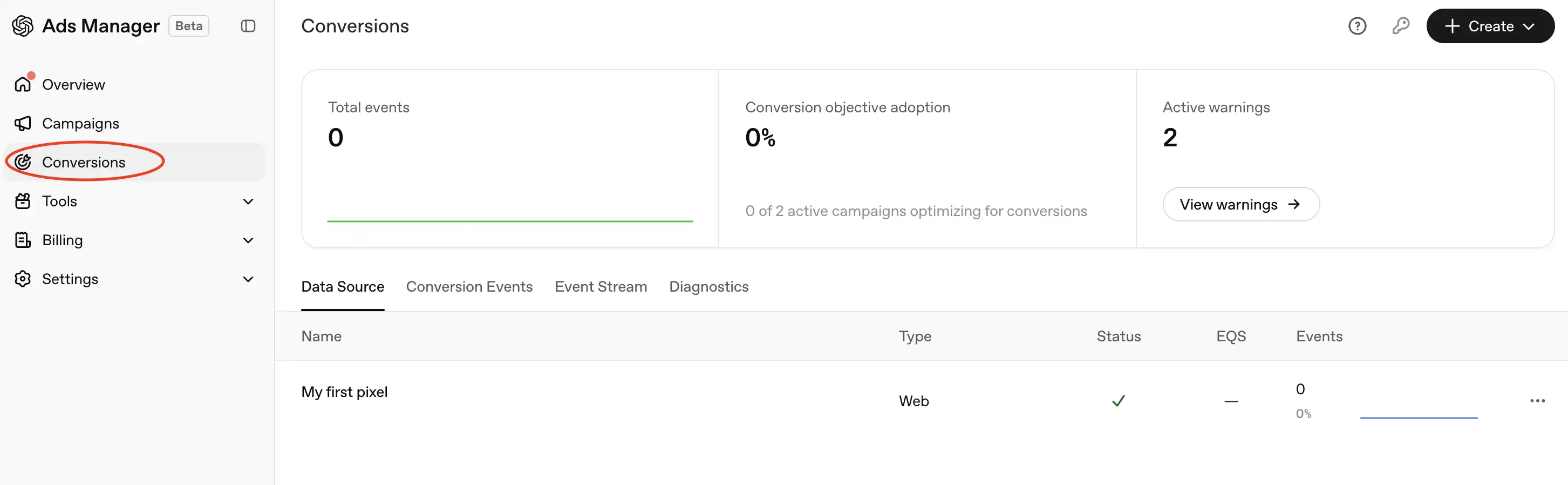
The general setup process is as follows:
- Open the conversion settings.
- Create a new data source for your website.
- Follow the instructions to configure the web data source.
- Save the Pixel ID and any other identifiers provided.
A data source connects the events sent by your website or server to your advertising account.
Step 2. Install the OpenAI Pixel on Your Website
Via the pixel: install the code on your site with your Pixel ID. No API key is needed in the browser. Place the code near the top of the head section on every page where you want to track conversions. While testing, turn on debug mode to see pixel activity in the browser console.
If your site asks for cookie consent, block measurement before the pixel initializes and allow it once the user consents. Without consent, the pixel doesn't send events and removes its cookies. Events blocked before consent aren't sent later.
Via the Conversions API: create an API key in your ad account and send events from your server. Each event includes its ID, type, time, source, and data.
Amounts are sent in the currency's minor units: 8900 means $89.00. If you send an amount, you must also specify the currency.
Conversions API limits: event time must be no more than 7 days in the past and no more than 10 minutes in the future, with up to 1,000 events per request. If a batch contains an invalid event, the entire batch is rejected. You can check the format without saving data using validate_only mode.
Step 3. Pass oppref
After an ad click, OpenAI adds the oppref parameter, a click identifier, to the link. The pixel captures it automatically and stores it in a cookie for 30 days. The Conversions API and image tag don't: save oppref when the user lands on your site and send it along with the event.
Without oppref, the system matches the event to a click using customer information. You can send hashed email, phone number, external ID, name, country, city, region, and postal code. The pixel also supports Automatic Advanced Matching: it detects supported form data on the page, hashes it in the browser, and sends it with the event. It's on by default for web pixels and can be turned off in the data source settings.
Step 4. Create a conversion event
Select the data source and event type. For a custom event, use exactly the same name you send through the pixel or API: a name mismatch is a common cause of "empty" conversions.
Step 5. Link the event to the campaign
You can link the event when you create the campaign or later. Reach and Clicks campaigns can have several events, while a Conversions campaign needs exactly one standard event. The objective and event of a conversions campaign can't be changed after creation.
Step 6. Check that events are arriving
Complete a test action on your site. In your ad account, you can see a sample of events from roughly the last 15 minutes: the pixel appears as a browser source and the Conversions API as a server source.
This checks the connection; it isn't a report. Attributed conversions appear in reports after daily processing.
Deduplication
If the same action arrives from both the pixel and the server, it will be counted twice without deduplication. To prevent this, both events must have the same:
- Pixel ID;
- event name;
- event ID.
For custom events, the custom event name must also match.
UTMs and dynamic parameters
You can add parameters to links at the account, campaign, ad group, and ad level. They can insert the account, campaign, ad group, and ad IDs, as well as oppref. If the same parameter is set at several levels, the ad's own link takes priority.
This shows in your analytics which campaign and ad a user came from.
Common mistakes
- The event was linked after launch. Conversions from the first days won't appear retroactively.
- The click ID is lost in a redirect. If your site redirects users and strips link parameters, the event can't be matched to the click.
- The amount is sent in major units. Sending 89 instead of 8900 understates revenue and ROAS by a factor of 100.
- Mismatched custom event names in the pixel and the conversion setting.
- No deduplication when the pixel and Conversions API run together.
- Expecting numbers to match GA4. Attribution windows, view-through conversions, and cookie consent rules differ between systems, so the numbers will differ too.
Before you launch
You set up ChatGPT Ads conversion tracking once, but a mistake only becomes visible after a few days, when that data can no longer be recovered.
Check three things before launch: the event is linked to the campaign, the test action shows up in your account, and oppref reaches your server.
Want to test ChatGPT Ads? Submit a request on our website.

.jpg)

_converted.webp)
_converted.webp)