.svg)

_converted.webp)
"Recommend trail running shoes under $100." More and more people ask ChatGPT questions like this instead of a search engine. In return, they get a selection of products with prices, and below the answer there may be an ad from a store.
An online store has two ways into that conversation. The first is ChatGPT shopping results, which are free and cannot be influenced with money. The second is product ads: you upload your catalog, and the system picks a product that fits the conversation and shows it in an ad card.
Below, we cover how product ads work, what to prepare, how to launch a campaign step by step, and the most common mistakes.
What product ads in ChatGPT are
A product campaign builds ads from your catalog. You create one template and choose which products an ad group can show, and the system fills the template with data from a matching product: brand, title, description, and price. It takes the image and the link from the feed. In the ad itself, the shopper sees the product photo, title, rating, price (plus the sale price, if there is one), and brand.
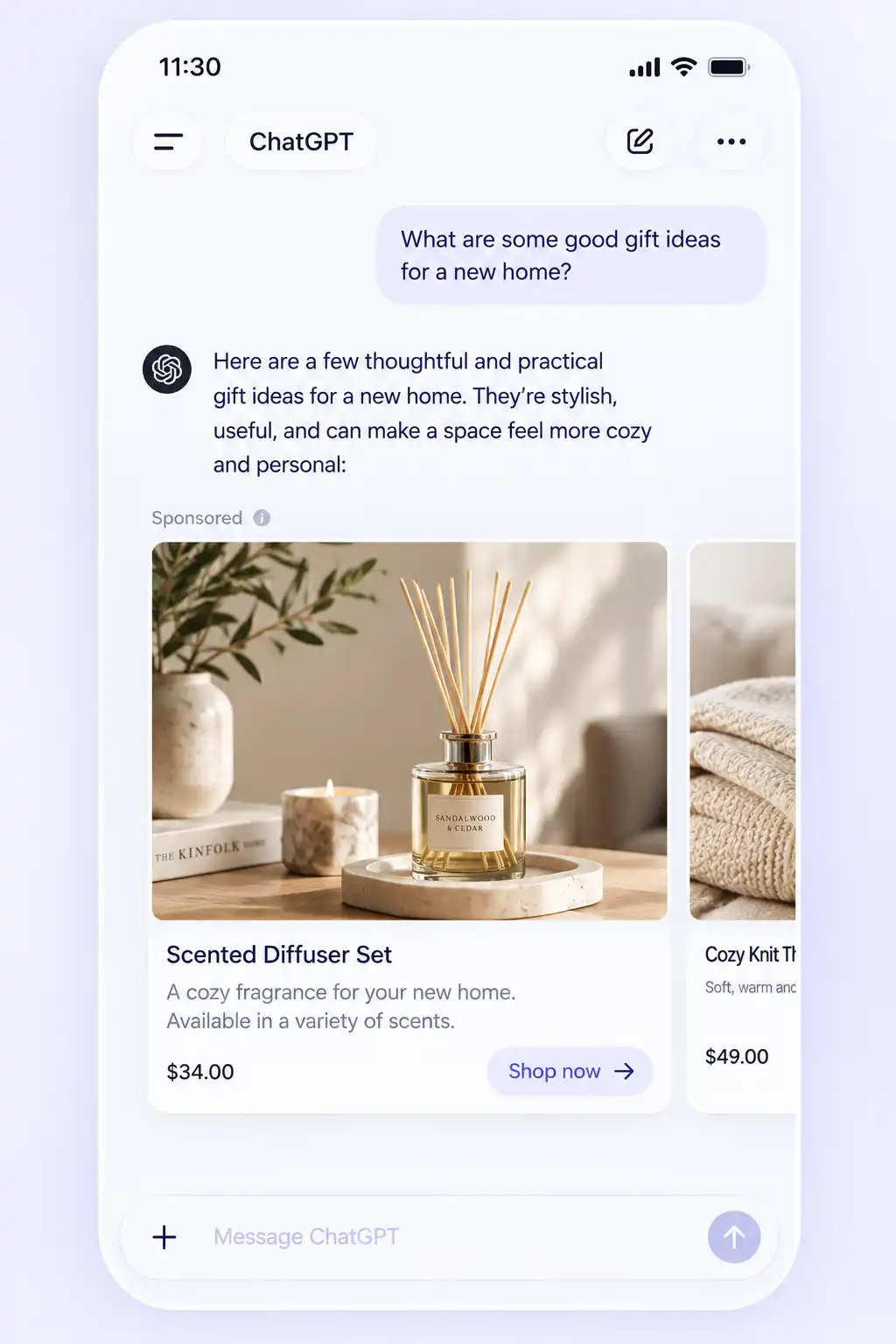
The main difference from a regular chat card is scale. A chat card is written by hand for a single offer. A product template covers your entire assortment, and in each conversation the system shows the product that is closest to the request.
Since August 2026, product campaigns can also appear as a carousel: several products from one seller in a single block. The platform decides whether to show one card or a carousel.
Product ads and shopping results are different mechanisms
Worth knowing in advance: during the beta, products you upload to Ads Manager are used for ads only and do not appear in ChatGPT shopping results. OpenAI says so in its help center and notes that this may change. Shopping results have a separate path: Shopify Catalog or an application to submit your feed directly.
What to prepare before launch
- A ChatGPT Ads account. You can open one yourself if your legal entity is registered in one of the 63 countries on OpenAI's list. If your company is registered outside that list, you can run ads through a partner or an agency.
- A product feed. In Ads Manager, this is a CSV or TXT file or a link to one. For SFTP, OpenAI recommends Parquet and also accepts compressed jsonl.gz, csv.gz, and tsv.gz files. Use UTF-8 encoding, with one row per product or variant.
- Public pages and images. Product links and images must open over HTTPS. A product without a valid main image drops out of delivery.
- Conversion tracking. A pixel or the Conversions API with a purchase event, if you want to see revenue and ROAS and optimize the campaign for sales. We covered the setup in the article "ChatGPT Ads conversion tracking".
Which fields your feed needs
Required fields under OpenAI's specification are item_id, title, description, url, image_url, price, availability, brand, and seller_name. Recommended fields are sale_price, product_category, gtin, mpn, condition, return_policy, target_countries, and store_country, as well as star_rating together with review_count: the rating appears right in the ad.
The ads_metadata field is especially useful. You can store your own labels in it, such as custom_label_0 with margin tier or collection, and then filter products by those labels in your ad groups.
If you already have a feed for Google Merchant Center or a Meta catalog, most of the data is ready. All that is left is to map the column names and formats to the OpenAI schema.
How to launch a product campaign, step by step
Step 1. Prepare the feed
Build a CSV file following the schema above. A large catalog can be split into several files, but each product must appear in only one of them.
Step 2. Upload the catalog
You upload the catalog in Ads Manager or over SFTP through the API.
In Ads Manager, open Tools → Feeds and click Create Feed. Then, in the feed menu (three dots), choose an upload method:
- Upload CSV or TXT, for the initial setup and occasional manual updates;
- Hosted URL, if your catalog lives at a permanent HTTPS address.

Advertisers who work through the API create a feed with a request and upload the catalog over SFTP.
Important: if a product is missing from the next upload, OpenAI keeps its latest version for up to 14 days, and then the product expires. That is why OpenAI recommends setting up automatic uploads, by link or over SFTP, and refreshing the catalog at least once a day. A manual file upload is only good for getting started. Shopify stores have the ChatGPT Ads app: their products are already connected through Shopify Catalog.
Step 3. Check processing
Processing takes anywhere from a few minutes to a few hours. Check the status under Upload History. The upload status shows how many rows were accepted and how many were rejected, along with errors: a missing required column, an invalid value, or an unsupported file format.
Accepted rows and products eligible for ads are two different numbers. Check the second one: those are the products the system can actually show.
Step 4. Create a product feed campaign
On the Campaigns tab, create a campaign and choose Product feed from the list of campaign types.

Choose an objective: impressions, clicks, or conversions.
The campaign type, objective, and linked feed cannot be changed after the campaign is created. Location targeting in product campaigns is currently available at the country level only.
Step 5. Build a product set
Create an ad group and select the feed. In the ad group, set filters: brand, category, price, rating, product ID, or your own labels from ads_metadata. Before you create the group, you can preview how many products match the filters. If there are no filters, the group uses the entire feed.
In the Bid strategy section, Maximize results is selected by default: the system sets bids on its own to get clicks or conversions, depending on the campaign objective. If you need a hard cap on price, choose Manual: Max bid.
Step 6. Create the ad template
Each ad group has one template, and it serves as the base for every product in the group. In Ads Manager, the template currently lets you choose only the image field: the title, description, price, rating, and brand are pulled from the feed. This means ad quality depends on how well the feed itself is filled in. Check the preview on a sample product.
Through the API, the template supports macros for brand, title, description, and price, and you can add your own text to the headline, up to 50 characters in total.
Step 7. Review everything before launch
Before you submit the campaign for review, make sure that:
- the right feed is selected;
- the product count matches what you meant to show;
- titles, descriptions, images, and links look right in the preview;
- the campaign, ad group, budget, bid strategy, and targeting are all filled in.
Step 8. Launch and check the product report
After review, the campaign starts serving. In reports, you can break results down by product and see which items get clicks and sales. Impressions of individual cards inside a carousel are counted separately and are not charged.
Product-level results live on the Products tab. This is a report, not a list of uploaded products: rows appear only after delivery starts, within up to 7 hours. Impressions, clicks, and CTR update about every 15 minutes, and spend updates with a 7–8 hour delay.
How to keep the catalog up to date
Prices and stock change every day, and your ads need to reflect that. There are two ways to update:
- targeted updates through the API, to change the price, availability, or title of products already uploaded, without re-uploading the whole catalog;
- a full upload, when you add new products or change other fields. Every upload must contain the entire current catalog, and it is best to keep the file names the same as last time.
You do not need to delete a product that is out of stock. Set it to out_of_stock, and it will stop showing. One account can hold up to 10 feeds, and there is no limit on the number of products per feed.
How to structure your campaigns
The most common mistake is a single ad group for the entire catalog with one bid. Expensive and cheap products, bestsellers and leftover stock all compete on the same terms.
It makes more sense to split the assortment by unit economics. For example, one group for high-margin products with a higher bid, and another for the rest of the assortment. Labels in ads_metadata make this split easy. A label defines which products a group can show, but it does not limit delivery by user location.
New product ad groups use Maximize results by default, a strategy that sets bids on its own to get clicks or conversions. It chases volume and does not guarantee a specific CPA or ROAS. For groups where a price ceiling matters, such as low-margin products, use a manual bid.
If you launch through the API, you can strengthen the template headline with a condition that holds true for every product in the group: "{{product.title}} with next-day delivery." Only do this if every product really ships that way. Ad review checks the ad against the landing page.
Who product ads are for
Product ads in ChatGPT make sense if:
- you sell in markets where ChatGPT shows ads;
- your catalog has at least a few dozen products;
- you already have a feed for other platforms;
- purchase tracking is set up on your website.
It is worth waiting if you have fewer than ten products, since chat cards will do the job more simply. The same goes for categories that are restricted in ChatGPT Ads: alcohol, tobacco and vapes, and adult products.
Where to start
The fourth quarter is peak season for ecommerce: sales events, holiday shopping, and gift hunting are just ahead. During this period, it matters most to be next to the shopper at the moment of choice. ChatGPT Ads opens a new way to reach your audience: product ads appear in the context of a conversation, while the user is comparing options and deciding what to buy.
For ecommerce brands, this is a chance to test a new ad channel during one of the busiest seasons of the year.
Evido by Aitarget helps you get access to ChatGPT Ads and prepare to launch product campaigns: we sort out product feed requirements, pixel setup, and the technical details. We help with preparation and setup so that you can manage your campaigns in the ad account yourself.
If you want to test ChatGPT Ads for your store, submit a request on our website.

.jpg)
_converted.webp)
_converted.webp)